
Send Client Agreement for New Relationship
Client Agreements will now be generated and sent via our contract management system! On average, the process should take 2-5 minutes from beginning to signing!
You can access the contract management system here.
Instructions:
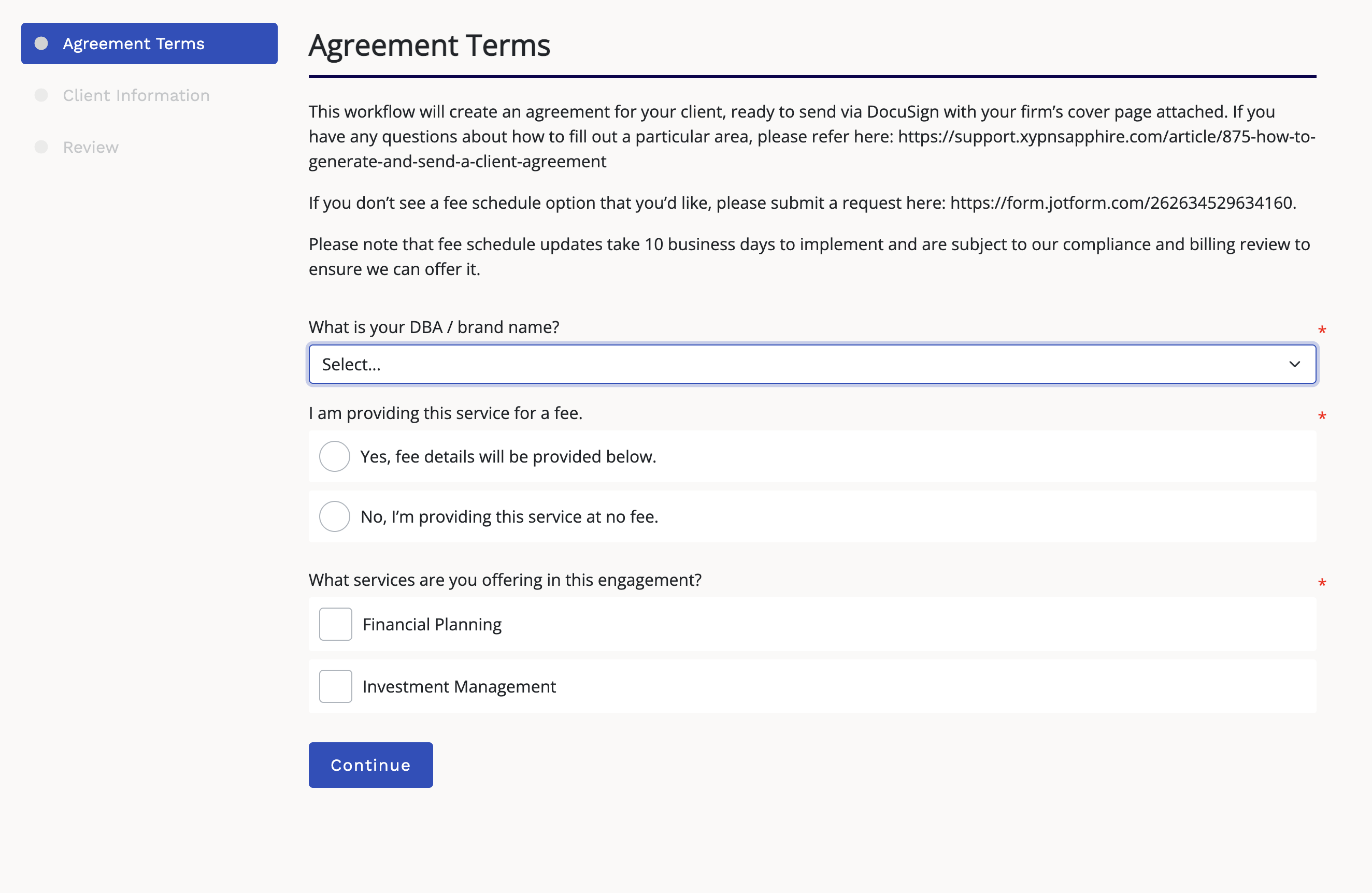
Step 1: Select your practice
Start by selecting your DBA or brand name.
This determines the information and customized cover page that will appear with the agreement.
Step 2: Choose whether you're charging a fee
Most client relationships will be set up as a paid engagement.
If you're providing services without a fee, such as a pro bono relationship or a no-fee family relationship, select No. The form will then remove the questions related to billing and fees.
Step 3: Select the services you're providing
You can choose:
- Financial planning only
- Investment management only
- Both financial planning and investment management
If you're providing both services, you'll also be asked how the client is paying for them.
You can select:
-
A separate fee for financial planning and investment management
Example: $200/month for planning plus an AUM fee for investment management.
-
A financial planning fee with investment management included
Example: $500/month for planning with no separate investment management fee.
-
An investment management fee with financial planning included
Example: an AUM fee or investment management flat fee with no separate planning fee.
Why do I need to choose how both services are billed?
The agreement needs to accurately reflect both the services the client is receiving and what the client is paying for.
Financial planning and investment management are separate advisory services, even when you package them together for the client. Selecting the appropriate option makes it clear whether each service has its own fee or whether one service is being provided as part of the other fee.
It also allows the agreement to include only the language and billing terms that apply to that particular client relationship.
Step 4: Set up financial planning
If the engagement includes financial planning, you'll answer a few questions about the type of planning you're providing.
Comprehensive or limited scope?
Choose Comprehensive when you're providing comprehensive financial planning, whether as a one-time plan or an ongoing relationship.
Choose Limited Scope when the engagement is focused on a specific area, such as:
- Retirement analysis
- Student loan analysis
- Another defined planning project
For limited-scope engagements, you'll describe the work being performed. That description will appear in an addendum to the agreement and will be initialed by both you and the client.
One-time or ongoing?
Next, choose whether the planning relationship has a defined scope and end point or is intended to continue on an ongoing basis.
One-time planning
For a project engagement, you can enter a project fee and choose from the available payment structures, including:
- Full payment at signing
- Full payment at delivery
- Half at signing and half at delivery
Hourly planning is also available. You'll enter your hourly rate and, if applicable, information about a deposit and estimated number of hours.
Ongoing planning
For ongoing planning, you'll select the recurring fee and whether you're billing monthly or quarterly.
You'll also be able to add an initial or onboarding fee if you charge one when beginning the client relationship.
How are ongoing planning fees billed?
Ongoing financial planning fees are billed in arrears and follow the date the client signs the agreement.
For example, if a client signs a monthly planning agreement on October 14, their first recurring planning fee will be billed November 14 for the prior month of service.
If you'd like to collect revenue when the relationship begins, you can include an upfront or onboarding fee, including an amount equivalent to the first month or quarter's ongoing fee.
This change applies to ongoing planning fees. Project, one-time, and upfront fees can still be collected according to the payment structure selected in the agreement.
Step 5: Select an investment management fee schedule
If the engagement includes investment management, you'll choose from the approved fee schedules available for your firm.
Start typing your firm name to see the schedules currently approved and available to use.
What if the fee schedule I want isn't listed?
Don't create the agreement with a different schedule or substitute another fee.
If you'd like to:
- add a new investment management fee schedule;
- change an existing schedule; or
- offer a fee that isn't currently available for your firm,
Submit a fee schedule request to the Sapphire team.
Please allow at least 10 business days for review and setup before offering the new fee to a client.
Having approved schedules available in advance is what allows the agreement tool to generate standard agreements quickly and consistently without requiring manual preparation each time.
Step 6: Enter advisor and client information
You'll enter:
- Your email address
- Whether one or two clients will sign
- Each client's name and email
- The advisor signing the agreement
You'll select your advisor name from the available list so the correct ADV information is included.
You'll also have the option to enter how you'd like your name displayed on the agreement.
Step 7: Review the agreement
Before anything is sent for signature, you'll have an opportunity to review the information you entered and the documents that were generated.
Depending on the engagement, the package may include:
- Your firm's customized cover page
- The client agreement
- Financial planning terms
- Investment management fee schedule
- Limited-scope planning addendum, if applicable
- Your ADV 2B
- Your brochure supplement / ADV Part 2B
The agreement only includes service language that applies to the options you selected.
If something doesn't look right, go back and correct your selections before submitting the agreement for signature.
Step 8: Sign and send
When everything looks correct, click Submit for Signing.
You'll receive the DocuSign package first. Review the agreement and add your signature.
Once you've signed, the agreement is automatically sent to your client for their signature and any required initials.
After the client completes DocuSign, you're done.
You do not need to separately send the completed agreement to Sapphire or submit another request to set up standard billing. Our team will handle the next steps for billing when applicable.
Frequently Asked Questions
Can I create an agreement with no fee?
Yes. Select that you're providing the services at no fee near the beginning of the form. The remaining fee questions will be removed.
This can be used for relationships such as pro bono clients or no-fee family accounts.
Can I still charge an upfront or onboarding fee?
Yes.
An upfront or onboarding fee can be added to an ongoing planning relationship, including when you also provide investment management.
Upfront fees are separate from your ongoing recurring planning fee and can be collected when the relationship begins.
Can I charge separately for planning and investment management?
Yes.
When you select both services, choose separate fees for financial planning and investment management. You'll enter your planning fee and select the appropriate approved investment management fee schedule.
What if financial planning is included with my AUM fee?
Select Investment management fee; financial planning is included.
This tells the agreement that the client receives both services but isn't paying an additional financial planning fee.
What if investment management is included in my planning fee?
Select Financial planning fee; investment management is included.
This tells the agreement that the client receives both services but isn't paying an additional investment management fee.
Can investment management fees be billed through AdvicePay?
No. Investment management fees should be billed through the investment management billing process rather than AdvicePay.
Sapphire manages AdvicePay for applicable financial planning fees.
Can I offer a one-off AUM discount to a client?
If that discounted fee schedule is already approved and available for your firm, you can select it.
If it isn't currently available, submit a fee schedule request before committing the fee to the client. A different percentage generally requires its own fee schedule and setup in our billing system.
We also need to maintain clear documentation for why clients receiving the same investment management service may be charged differently, particularly when multiple discounted schedules are used.
I used to send my own agreements or manage fees directly in AdvicePay. Can I still do that?
Going forward, client agreements should be generated and sent through the Sapphire Service Hub, and Sapphire will manage applicable AdvicePay billing.
This helps us make sure the agreement, services, billing terms, and fee setup all stay aligned and that the correct disclosures and agreement language are used each time.
You'll still control the engagement structure and fee options you select, but the agreement itself should be generated through the Sapphire process rather than sent independently. For ongoing planning fees, Sapphire will also manage the AdvicePay setup based on the signed agreement.
If you previously handled your own agreements or AdvicePay billing, this will be a workflow change beginning October 5.
What if I don't see the investment management fee schedule I want to use?
If the fee schedule you want isn't listed, it means it isn't currently approved and set up as an available option for your firm.
Submit a fee schedule request before offering that fee to the client. New or changed investment management fee schedules require review and setup and may take up to 10 business days to implement.
Once the schedule is approved and added, it will become available for you to select when generating future agreements.
This includes situations where you want to:
- offer a new standard fee schedule;
- change your existing pricing;
- add a discounted schedule; or
- charge a client a different AUM rate than the options currently available.
If you're considering a one-off discount, keep in mind that different investment management rates may require additional documentation around why clients receiving the same service are being charged differently.
What if I need something the standard agreement doesn't support?
The standard tool is intended to handle the large majority of client relationships.
If you have an arrangement that can't be created using the available options, submit an exception request to the Sapphire team. Billing and Compliance may need to review the arrangement before an agreement can be created.
Please don't promise a non-standard fee structure or agreement timeline to the client until we've confirmed that we can support it.
Why is Sapphire standardizing this process?
As Sapphire has grown, one-off agreement structures, manual fee setup, and different billing processes have added complexity behind the scenes. Those exceptions can also slow down the standard agreements that make up most client relationships.
The new process allows standard agreements to be generated in minutes while keeping the services, fee schedules, agreement language, and billing setup consistent.
The goal isn't to reduce the flexibility you have in how you run your practice. It's to make the standard path dramatically faster, while giving us a clear process for the situations that genuinely require something different.